> ## Documentation Index
> Fetch the complete documentation index at: https://differentai-cleanup-ai-gateway-models-replacement.mintlify.site/llms.txt
> Use this file to discover all available pages before exploring further.
# Sharing MCP connections with your team
> Share Notion, Linear, Stripe, Exa, or any MCP server in OpenWork Cloud with Individual accounts by default, or One org account when everyone should act as the same account
Use `Connectors` when you want the organization to manage an MCP integration once
— the server URL, who can use it, and how people sign in — instead of every
member configuring Notion or Linear by hand on every machine.
Two ways to handle whose account the AI uses, chosen per connection:
* **Individual accounts** — each person signs in as themselves. This is now
the default for OAuth servers, and it fits tools like Notion or Linear where
people have their own pages, projects, and permissions. The agent acts as
*you*, and the provider's own access rules apply.
* **One org account** — an admin signs in once (a bot, service account, or API
key). Every granted member's AI acts as that identity.
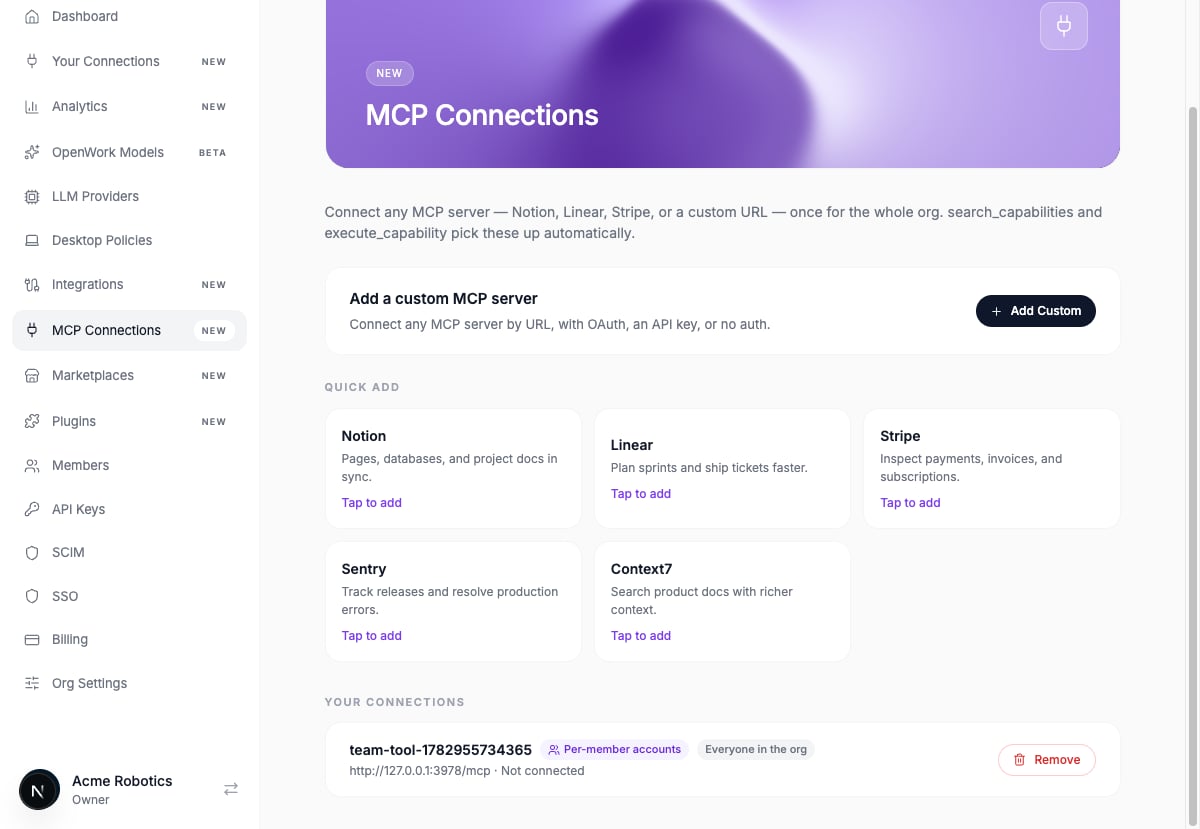
## Publish the connection in OpenWork Cloud
1. Open `Connectors` in the OpenWork Cloud dashboard.
2. Click `Add connection`.
3. Pick a preset (Notion, Linear, Stripe, Sentry, Exa, Context7) or enter any
MCP server URL.
4. Choose the account mode: `Individual accounts` or `One org account`.
5. Choose who can use it: the whole workspace, specific teams, or specific
people.
6. Click `Create`.
 For a One org account connection, finish by clicking `Connect` and completing
the provider's sign-in as the org account. Individual accounts connections are
ready to publish immediately — each person connects themselves.
On `Your Connections`, an unconnected One org account connection shows
`Waiting for an admin to connect` to members. Workspace owners and admins get a
`Connect` button on that row so they can finish the org account sign-in there.
## Test tools
Admins open **Manage → Connectors**, then use the row **⋯ → Test tools**, or go
directly to **Manage → Tool Tester**. Select a connector to list its tools, run
one with form or JSON arguments, and inspect the request and response. The tool
policy controls on this page choose which tools the organization can use.
**Your Connections** also shows admins a wrench shortcut to the same tester.
## Organization policy and native actions
Connect is default-on. A platform administrator can disable member-facing
connections with the organization's `capabilities.mcpConnections` setting.
Native Google Workspace and Microsoft 365 actions honor that same policy,
including existing clients using legacy/default accounts. Client version does
not bypass a disabled organization's authorization policy.
A disabled native action returns the existing `policy_blocked` error and an
administrator-directed message; native REST routes use HTTP `403`. This is not
a sign-in failure: reconnecting an account does not enable Connect. Missing
credentials in an enabled organization still return `needs_connection` and HTTP
`409`. Success payloads and saved credentials are unchanged. Administrators can
still manage connection configuration, and re-enabling Connect restores access
subject to the member's existing grants and credentials.
For self-hosted deployments, `DEN_MCP_CONNECTIONS_GATING_ENABLED` is deprecated
and inert. It does not override an explicit organization disable; the existing
organization metadata policy remains authoritative.
## OAuth redirect URL
An OAuth redirect URL, also called a callback URL, is the exact address where
the provider sends the browser after a person approves access. It belongs to
your specific Den deployment; it is not the MCP server URL or the client
metadata URL.
New MCP connections on one Den instance share this redirect URL:
```text theme={null}
/v1/mcp-connections/oauth/callback
```
For the hosted OpenWork Cloud instance, the dashboard is
`https://app.openworklabs.com` and its public Den API origin is
`https://api.openworklabs.com`. Register this exact redirect URL with the OAuth
provider:
```text theme={null}
https://api.openworklabs.com/v1/mcp-connections/oauth/callback
```
For a self-hosted instance whose public Den API is
`https://api.openwork.example.com`, register:
```text theme={null}
https://api.openwork.example.com/v1/mcp-connections/oauth/callback
```
Use the exact scheme, hostname, optional path prefix, and port configured in
`DEN_API_PUBLIC_URL`. Providers compare redirect URLs exactly. Existing
connections created with an older per-connection callback keep that registered
URL automatically; do not change it just to reconnect.
If a provider refuses to register OpenWork (members see "*Provider* hasn't
approved OpenWork yet"), or its authorization server only accepts clients it
has pre-registered, send them
[Make your MCP server work with OpenWork](/cloud/share-with-your-team/mcp-server-compatibility).
It lists the redirect URL, the client metadata document, and the registration
methods OpenWork supports, plus a request template.
## Slack
Slack's MCP server does not support automatic OAuth client registration, so a Slack admin creates a Slack app once and OpenWork Cloud uses its credentials for every member.
1. Create or open a Slack app in [Slack API apps](https://api.slack.com/apps).
2. Go to the `Agents` tab in the app settings and turn on the `MCP` toggle. Slack only serves MCP requests for apps that have this enabled.
3. In `OAuth & Permissions`, add this Den instance's OAuth redirect URL (see above) to the redirect URLs.
4. Add the `User Token Scopes` for the Slack MCP tools your team wants agents to use (see below).
5. Install or approve the app for the workspace.
6. In OpenWork Cloud, add the Slack connection and paste the app's `Client ID` and `Client Secret` from `Basic Information` > `App Credentials`.
7. Members open `Your Connections` and connect their own Slack account.
You do not need Slack bot tokens (`xoxb-...` or `xapp-...`) for this flow. Keep the client secret out of chats and source control.
### Slack scopes
Slack MCP uses user token scopes. Choose the smallest set that matches what your team wants agents to do.
For a useful read-first setup, start with:
```text theme={null}
search:read.public search:read.private search:read.mpim search:read.im search:read.files search:read.users channels:history groups:history mpim:history im:history users:read users:read.email channels:read groups:read mpim:read
```
Add write scopes only if you want agents to take action in Slack:
```text theme={null}
chat:write reactions:write channels:write groups:write im:write mpim:write canvases:read canvases:write
```
Use this table to pick scopes by capability:
| Slack MCP capability | User token scopes |
| ------------------------------------------- | --------------------------------------------------------------------------------- |
| Search public and private messages/channels | `search:read.public`, `search:read.private`, `search:read.mpim`, `search:read.im` |
| Search files | `search:read.files` |
| Read files | `files:read` |
| Search emoji | `emoji:read` |
| Search users | `search:read.users` |
| Send messages | `chat:write` |
| Read channels and threads | `channels:history`, `groups:history`, `mpim:history`, `im:history` |
| Create conversations/channels | `channels:write`, `groups:write`, `im:write`, `mpim:write` |
| Add reactions | `reactions:write` |
| Read and write canvases | `canvases:read`, `canvases:write` |
| Read user profiles and email | `users:read`, `users:read.email` |
| List channel members | `channels:read`, `groups:read`, `mpim:read` |
### Troubleshooting Slack
If members cannot connect even though the client ID and secret are correct, check that MCP is enabled for the Slack app: open it in [Slack API apps](https://api.slack.com/apps), go to the `Agents` tab, and turn on the `MCP` toggle.
If Slack says the redirect URL is invalid, add this Den instance's OAuth redirect URL to the Slack app's `OAuth & Permissions` redirect URLs. If Slack says a scope is invalid or unavailable, remove it from the Slack app and the connection's scopes, then retry; Slack workspace policies and plan settings can limit which scopes an app may request. If the workspace blocks app installation, a Slack admin must approve the app first.
## What members see in the desktop app
Granted members find the connection in `Settings` > `OpenWork Connect`, grouped by what
they need to do:
* **Needs your sign-in** — individual-account connections that require the
member to authenticate or reconnect.
* **Needs admin setup** — connections that an organization admin still needs
to configure or authenticate.
* **Ready to use** — connections ready for the agent, including accounts
managed by the organization.
## Connect your account
1. Sign in to OpenWork, then open `Settings` > `OpenWork Connect`.
2. Find the service under `Needs your sign-in`, then click `Connect`.
3. Your browser opens the provider's own sign-in page. Approve access.
4. The browser shows `Connected` — return to OpenWork.
5. The connection updates by itself, no reload needed, and moves to
`Ready to use`.
Your sign-in is stored in OpenWork Cloud, not on this machine — connect once
and every device you use is connected.
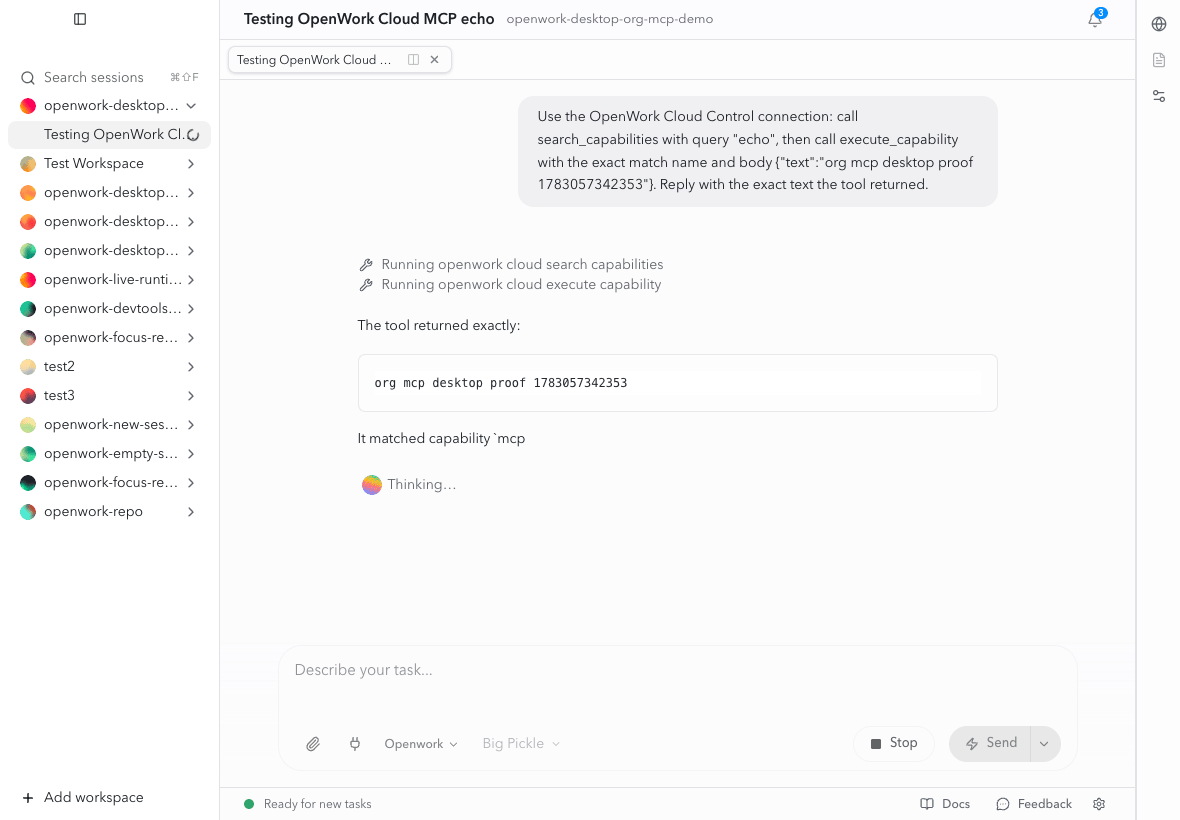
## Your agent can use it immediately
No restart, no resync. Ask for something the tool can do:
> Find the "Q3 launch" page in Notion and summarize it.
The agent searches the live capabilities available through OpenWork Connect,
then executes an exact match with **your** account — your permissions, your
audit trail on the provider's side.
For a One org account connection, finish by clicking `Connect` and completing
the provider's sign-in as the org account. Individual accounts connections are
ready to publish immediately — each person connects themselves.
On `Your Connections`, an unconnected One org account connection shows
`Waiting for an admin to connect` to members. Workspace owners and admins get a
`Connect` button on that row so they can finish the org account sign-in there.
## Test tools
Admins open **Manage → Connectors**, then use the row **⋯ → Test tools**, or go
directly to **Manage → Tool Tester**. Select a connector to list its tools, run
one with form or JSON arguments, and inspect the request and response. The tool
policy controls on this page choose which tools the organization can use.
**Your Connections** also shows admins a wrench shortcut to the same tester.
## Organization policy and native actions
Connect is default-on. A platform administrator can disable member-facing
connections with the organization's `capabilities.mcpConnections` setting.
Native Google Workspace and Microsoft 365 actions honor that same policy,
including existing clients using legacy/default accounts. Client version does
not bypass a disabled organization's authorization policy.
A disabled native action returns the existing `policy_blocked` error and an
administrator-directed message; native REST routes use HTTP `403`. This is not
a sign-in failure: reconnecting an account does not enable Connect. Missing
credentials in an enabled organization still return `needs_connection` and HTTP
`409`. Success payloads and saved credentials are unchanged. Administrators can
still manage connection configuration, and re-enabling Connect restores access
subject to the member's existing grants and credentials.
For self-hosted deployments, `DEN_MCP_CONNECTIONS_GATING_ENABLED` is deprecated
and inert. It does not override an explicit organization disable; the existing
organization metadata policy remains authoritative.
## OAuth redirect URL
An OAuth redirect URL, also called a callback URL, is the exact address where
the provider sends the browser after a person approves access. It belongs to
your specific Den deployment; it is not the MCP server URL or the client
metadata URL.
New MCP connections on one Den instance share this redirect URL:
```text theme={null}
/v1/mcp-connections/oauth/callback
```
For the hosted OpenWork Cloud instance, the dashboard is
`https://app.openworklabs.com` and its public Den API origin is
`https://api.openworklabs.com`. Register this exact redirect URL with the OAuth
provider:
```text theme={null}
https://api.openworklabs.com/v1/mcp-connections/oauth/callback
```
For a self-hosted instance whose public Den API is
`https://api.openwork.example.com`, register:
```text theme={null}
https://api.openwork.example.com/v1/mcp-connections/oauth/callback
```
Use the exact scheme, hostname, optional path prefix, and port configured in
`DEN_API_PUBLIC_URL`. Providers compare redirect URLs exactly. Existing
connections created with an older per-connection callback keep that registered
URL automatically; do not change it just to reconnect.
If a provider refuses to register OpenWork (members see "*Provider* hasn't
approved OpenWork yet"), or its authorization server only accepts clients it
has pre-registered, send them
[Make your MCP server work with OpenWork](/cloud/share-with-your-team/mcp-server-compatibility).
It lists the redirect URL, the client metadata document, and the registration
methods OpenWork supports, plus a request template.
## Slack
Slack's MCP server does not support automatic OAuth client registration, so a Slack admin creates a Slack app once and OpenWork Cloud uses its credentials for every member.
1. Create or open a Slack app in [Slack API apps](https://api.slack.com/apps).
2. Go to the `Agents` tab in the app settings and turn on the `MCP` toggle. Slack only serves MCP requests for apps that have this enabled.
3. In `OAuth & Permissions`, add this Den instance's OAuth redirect URL (see above) to the redirect URLs.
4. Add the `User Token Scopes` for the Slack MCP tools your team wants agents to use (see below).
5. Install or approve the app for the workspace.
6. In OpenWork Cloud, add the Slack connection and paste the app's `Client ID` and `Client Secret` from `Basic Information` > `App Credentials`.
7. Members open `Your Connections` and connect their own Slack account.
You do not need Slack bot tokens (`xoxb-...` or `xapp-...`) for this flow. Keep the client secret out of chats and source control.
### Slack scopes
Slack MCP uses user token scopes. Choose the smallest set that matches what your team wants agents to do.
For a useful read-first setup, start with:
```text theme={null}
search:read.public search:read.private search:read.mpim search:read.im search:read.files search:read.users channels:history groups:history mpim:history im:history users:read users:read.email channels:read groups:read mpim:read
```
Add write scopes only if you want agents to take action in Slack:
```text theme={null}
chat:write reactions:write channels:write groups:write im:write mpim:write canvases:read canvases:write
```
Use this table to pick scopes by capability:
| Slack MCP capability | User token scopes |
| ------------------------------------------- | --------------------------------------------------------------------------------- |
| Search public and private messages/channels | `search:read.public`, `search:read.private`, `search:read.mpim`, `search:read.im` |
| Search files | `search:read.files` |
| Read files | `files:read` |
| Search emoji | `emoji:read` |
| Search users | `search:read.users` |
| Send messages | `chat:write` |
| Read channels and threads | `channels:history`, `groups:history`, `mpim:history`, `im:history` |
| Create conversations/channels | `channels:write`, `groups:write`, `im:write`, `mpim:write` |
| Add reactions | `reactions:write` |
| Read and write canvases | `canvases:read`, `canvases:write` |
| Read user profiles and email | `users:read`, `users:read.email` |
| List channel members | `channels:read`, `groups:read`, `mpim:read` |
### Troubleshooting Slack
If members cannot connect even though the client ID and secret are correct, check that MCP is enabled for the Slack app: open it in [Slack API apps](https://api.slack.com/apps), go to the `Agents` tab, and turn on the `MCP` toggle.
If Slack says the redirect URL is invalid, add this Den instance's OAuth redirect URL to the Slack app's `OAuth & Permissions` redirect URLs. If Slack says a scope is invalid or unavailable, remove it from the Slack app and the connection's scopes, then retry; Slack workspace policies and plan settings can limit which scopes an app may request. If the workspace blocks app installation, a Slack admin must approve the app first.
## What members see in the desktop app
Granted members find the connection in `Settings` > `OpenWork Connect`, grouped by what
they need to do:
* **Needs your sign-in** — individual-account connections that require the
member to authenticate or reconnect.
* **Needs admin setup** — connections that an organization admin still needs
to configure or authenticate.
* **Ready to use** — connections ready for the agent, including accounts
managed by the organization.
## Connect your account
1. Sign in to OpenWork, then open `Settings` > `OpenWork Connect`.
2. Find the service under `Needs your sign-in`, then click `Connect`.
3. Your browser opens the provider's own sign-in page. Approve access.
4. The browser shows `Connected` — return to OpenWork.
5. The connection updates by itself, no reload needed, and moves to
`Ready to use`.
Your sign-in is stored in OpenWork Cloud, not on this machine — connect once
and every device you use is connected.
## Your agent can use it immediately
No restart, no resync. Ask for something the tool can do:
> Find the "Q3 launch" page in Notion and summarize it.
The agent searches the live capabilities available through OpenWork Connect,
then executes an exact match with **your** account — your permissions, your
audit trail on the provider's side.
 If a connection needs attention, the agent should tell you which account needs
action and direct you to `Settings` > `OpenWork Connect`.
## Expose a connection directly as an MCP server
By default the agent reaches every connection through OpenWork Connect's two
discovery tools, `search_capabilities` and `execute_capability`, so the model
sees a small, constant tool list no matter how many connections you publish.
For a connection the agent uses constantly, an admin can instead tick
`Expose directly as an MCP server` when adding or editing it. Granted members'
desktop apps then register that connection as its own MCP server in OpenCode,
so the model sees the provider's real tool names and schemas up front and calls
them without a search step. The same option is available from any MCP client
that reads the OpenWork Connect server index.
What stays the same:
* Sign-in still happens in OpenWork Cloud. The desktop app never receives the
provider's URL or token; it talks to Den's per-connection endpoint with the
member's own OpenWork credential.
* Access grants and the connection's tool policy, edited in **Manage → Tool Tester**, are enforced on every call.
* Turning the option off, revoking a member's access, or removing the
connection removes the server from every desktop on the next sync.
* Member-added local MCP servers are never touched.
Directly exposed connections appear in OpenCode as `openwork-direct--…`.
### Use a connection in another MCP client
On **Your Connections**, expand **Use in another app** beneath a directly
exposed connection and copy its MCP URL. Admins can find the same section in
that connection's edit dialog after saving direct exposure.
Add the URL as a remote HTTP MCP server in your client, choose OAuth, and sign
in to OpenWork. Use the URL shown in Den, not the provider's upstream URL or
Den's internal `/api/den` proxy. A provider account may still need to be connected
in OpenWork; existing organization access and tool policies continue to apply.
Each URL serves one connection. This does not add its tools to the main
`/mcp/agent` gateway catalog. Self-hosted deployments use their configured public
API base URL.
MCP Apps-capable clients can read the App HTML bound to available model-visible
tools on directly exposed connections. Arbitrary resources and app-only helper
tools remain unavailable to ordinary external clients, so initial App loading
does not guarantee that every interactive App callback is supported. Rendering
also depends on the external client's MCP Apps support.
External provider tool calls require the caller's `mcp:write` scope even when
the provider advertises `readOnlyHint: true`. Provider hints do not grant
execution authority; discovery and connection-status probes remain available
with `mcp:read`. See [MCP token scopes](/cloud/run-in-the-cloud/cloud-mcp#mcp-token-scopes).
## Notes for admins
* Members only see connections they've been granted — access is explicit
(workspace-wide, team, or per-person), and it's enforced by the server on
every request, not by the app.
* Removing a connection (or a member's access) takes effect immediately for
every device.
* Members who already connected a tool directly in their desktop app keep
their existing setup — publishing an org connection never removes or
changes anyone's local configuration.
## Relationship to local MCP servers
[Add a custom MCP server](/start-here/connect-your-stack/add-an-mcp-server)
still works without a cloud account. Use that advanced path for local tools or
servers your organization does not provide. Use Connect for accounts and
services managed through OpenWork Cloud.
If a connection needs attention, the agent should tell you which account needs
action and direct you to `Settings` > `OpenWork Connect`.
## Expose a connection directly as an MCP server
By default the agent reaches every connection through OpenWork Connect's two
discovery tools, `search_capabilities` and `execute_capability`, so the model
sees a small, constant tool list no matter how many connections you publish.
For a connection the agent uses constantly, an admin can instead tick
`Expose directly as an MCP server` when adding or editing it. Granted members'
desktop apps then register that connection as its own MCP server in OpenCode,
so the model sees the provider's real tool names and schemas up front and calls
them without a search step. The same option is available from any MCP client
that reads the OpenWork Connect server index.
What stays the same:
* Sign-in still happens in OpenWork Cloud. The desktop app never receives the
provider's URL or token; it talks to Den's per-connection endpoint with the
member's own OpenWork credential.
* Access grants and the connection's tool policy, edited in **Manage → Tool Tester**, are enforced on every call.
* Turning the option off, revoking a member's access, or removing the
connection removes the server from every desktop on the next sync.
* Member-added local MCP servers are never touched.
Directly exposed connections appear in OpenCode as `openwork-direct--…`.
### Use a connection in another MCP client
On **Your Connections**, expand **Use in another app** beneath a directly
exposed connection and copy its MCP URL. Admins can find the same section in
that connection's edit dialog after saving direct exposure.
Add the URL as a remote HTTP MCP server in your client, choose OAuth, and sign
in to OpenWork. Use the URL shown in Den, not the provider's upstream URL or
Den's internal `/api/den` proxy. A provider account may still need to be connected
in OpenWork; existing organization access and tool policies continue to apply.
Each URL serves one connection. This does not add its tools to the main
`/mcp/agent` gateway catalog. Self-hosted deployments use their configured public
API base URL.
MCP Apps-capable clients can read the App HTML bound to available model-visible
tools on directly exposed connections. Arbitrary resources and app-only helper
tools remain unavailable to ordinary external clients, so initial App loading
does not guarantee that every interactive App callback is supported. Rendering
also depends on the external client's MCP Apps support.
External provider tool calls require the caller's `mcp:write` scope even when
the provider advertises `readOnlyHint: true`. Provider hints do not grant
execution authority; discovery and connection-status probes remain available
with `mcp:read`. See [MCP token scopes](/cloud/run-in-the-cloud/cloud-mcp#mcp-token-scopes).
## Notes for admins
* Members only see connections they've been granted — access is explicit
(workspace-wide, team, or per-person), and it's enforced by the server on
every request, not by the app.
* Removing a connection (or a member's access) takes effect immediately for
every device.
* Members who already connected a tool directly in their desktop app keep
their existing setup — publishing an org connection never removes or
changes anyone's local configuration.
## Relationship to local MCP servers
[Add a custom MCP server](/start-here/connect-your-stack/add-an-mcp-server)
still works without a cloud account. Use that advanced path for local tools or
servers your organization does not provide. Use Connect for accounts and
services managed through OpenWork Cloud.