> ## Documentation Index
> Fetch the complete documentation index at: https://differentai-cleanup-ai-gateway-models-replacement.mintlify.site/llms.txt
> Use this file to discover all available pages before exploring further.
# Managing members and RBAC
> Manage owners, super-admins, admins, members, custom roles, and team-inherited Admin access, including SCIM groups
OpenWork Cloud separates org membership from team assignment. Teams are used for Collection and provider access; roles control what a person can manage across the org. An explicitly approved team can also grant organization-wide `Admin` access to its members.
## Default roles
OpenWork Cloud comes with four default roles:
* `Owner`: full org control, including member roles and custom roles.
* `Super Admin` (`super-admin`): can manage organization settings, SSO, SCIM, API keys, member roles, and custom roles, as well as routine administration.
* `Admin`: can invite `Member` users, manage ordinary teams, remove members subject to access safeguards, and manage shared Cloud resources. Cannot assign roles or change organization security settings.
* `Member`: can use resources shared with them but cannot manage org administration.
Only owners and super-admins can change member roles, manage custom roles, or designate teams that grant `Admin`. Ownership transfer and organization deletion remain owner-only; `Owner` cannot be assigned through an invitation or the ordinary role editor.
## Invite members
1. Open `Members`.
2. On the `Members` or `Invitations` tab, click `Add member` or `Invite member`.
3. Enter the teammate `Email`.
4. If you are an owner or super-admin, choose the initial `Role`. Admins can invite only `Member` users.
5. Click `Send invite`.
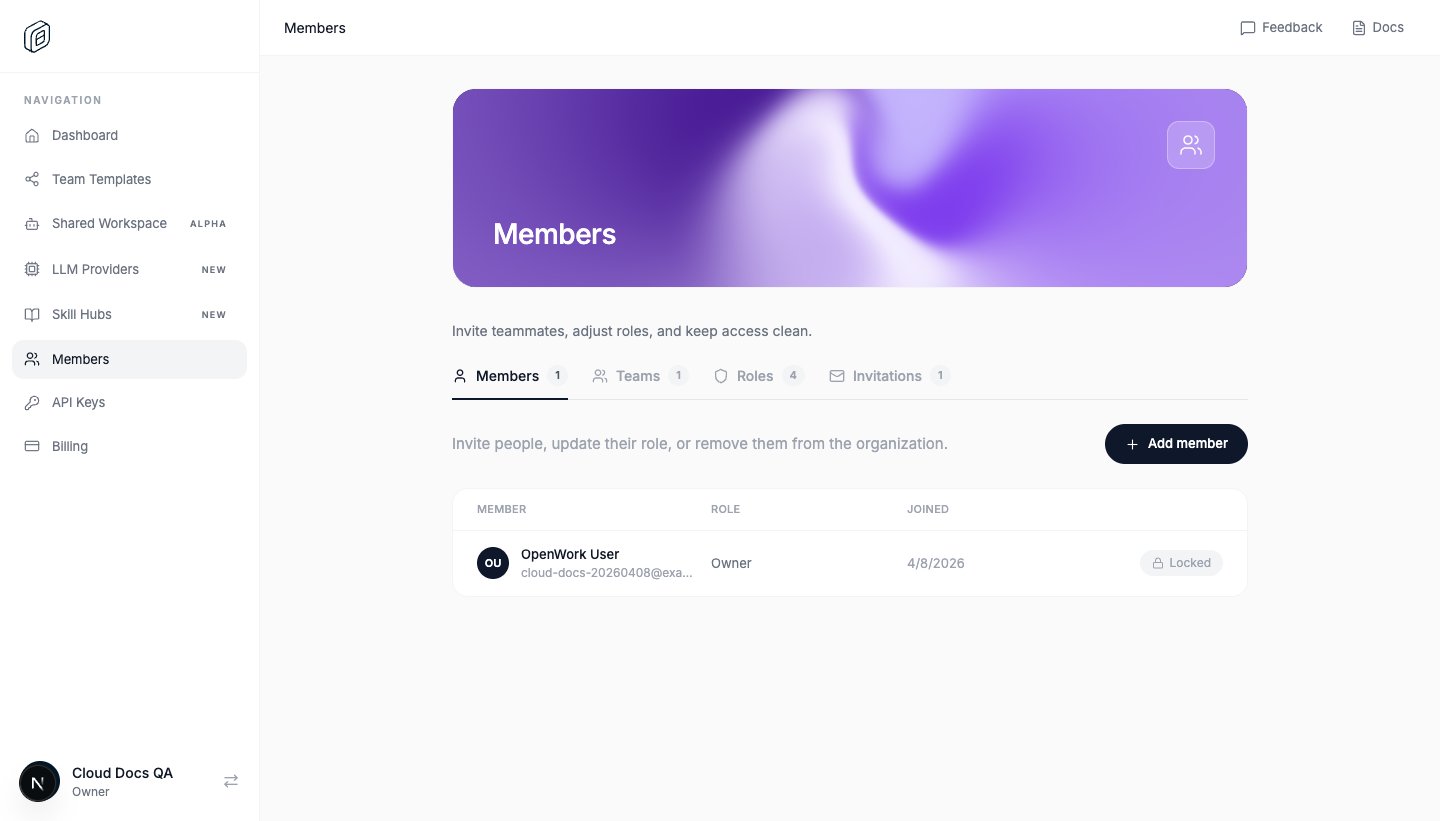 Invites are tied to the invited email address.
## SSO just-in-time provisioning
When SSO just-in-time provisioning adds someone to an organization on first sign-in, OpenWork assigns the baseline `Member` role. IdP attributes such as `role`, `groups`, or `admin` are not used to grant OpenWork organization roles.
Elevated access requires an explicit OpenWork role assignment, ownership transfer, or [approved Admin team](#team-admin-access). A SAML group attribute or an identity-provider group named `Admins` does not grant a role on its own.
## Restrict who can join
If you only want teammates from specific companies or domains to join:
1. Open `Org settings`.
2. Turn on `Restrict allowed email domains`.
3. Add each approved domain to the `Domain allowlist`.
4. Click `Save settings`.
When this is enabled, OpenWork Cloud only lets people join with email addresses from the approved domains. Existing invites still target a specific email address, so both checks apply: the invitee must use the invited email address and that address must match the allowlist.
## Create teams
1. Open `Members -> Teams`.
2. Click `Create Team`.
3. Set `Team name`.
4. Choose `Team members`.
5. Click `Create team`.
You can use teams to control access to Collections and LLM providers without assigning people one by one.
### Manage teams with SCIM Groups
Organizations using SCIM can open `SCIM` and enable **Create teams from SCIM groups**. OpenWork then creates a team for each provisioned Group and keeps its membership synchronized from the identity provider. These teams are labeled **Managed by SCIM** and must be changed in the identity provider; manually created teams and memberships remain independent.
To connect an identity provider, follow
[Okta SCIM provisioning](/cloud/scim-okta) or
[Microsoft Entra SCIM provisioning](/cloud/scim-microsoft-entra).
When SCIM deprovisions a user, OpenWork retains a disconnected member record for organization history. The global user is deleted only when they have no other active organization memberships. Reactivate the user through SCIM before they can regain SAML access.
## Team Admin access
An Admin team grants the built-in organization `Admin` role, not just administration of that team. It can be a manually managed OpenWork team or a team synchronized from a SCIM Group. Creating or syncing a team does not enable this grant automatically.
### Approve an Admin team
1. Sign in as an organization owner or super-admin.
2. Open **Members -> Teams** and review the team's members.
3. Select `Grant organisation Admin to all members of {team name}` beneath the team in the list. The same checkbox is available directly below the heading on the team's detail page, above **Overview** and **Access**.
4. The checkbox saves immediately. In **Members**, check `Admin via {team name}` to see the source of inherited access.
Only owners and super-admins can enable or clear this checkbox. Admins, including people who inherit Admin from a team, cannot designate another Admin team or change the designation of their own team.
### Direct and inherited roles
* A **direct role** is assigned to the person in OpenWork. Team membership does not rewrite it.
* **Inherited Admin** is added while the person is an active organization member of an approved Admin team. Their direct role and other grants still apply.
* Teams never grant `Owner`, `Super Admin`, or a custom role. Inherited Admin does not unlock owner/super-admin-only settings or role management.
* Removing someone from one Admin team, or clearing that team's checkbox, removes only that source of Admin access. A direct `Admin` role or another approved Admin team still grants Admin. Changing a direct role to `Member` does not remove an existing team grant.
For access reviews, inspect both the person's direct role and every team named in **Admin via**. OpenWork checks current team authority on subsequent requests; the person does not need a new sign-in for team access changes to apply.
### Who manages membership
For a **manually managed Admin team**, only owners and super-admins can add or remove members or delete the team. This applies whether membership is edited from the team or the member list. Admins also cannot remove an organization member with Admin team access or refresh or cancel an invitation carrying that access.
For a team labeled **Managed by SCIM**, change its name and membership in the identity provider, not in OpenWork. Owners and super-admins still control the Admin checkbox in OpenWork. Approving it means trusting the identity provider's group-membership administrators to determine who receives organization Admin through that group.
SCIM changes apply only after the identity provider sends them and OpenWork processes them successfully. A removal still waiting in an Entra provisioning cycle or Okta group push has not yet revoked access in OpenWork. Check provider provisioning logs, OpenWork SCIM health, and **Admin via** rather than assuming an IdP edit has taken effect. SCIM user deprovisioning removes active organization access, not just one team's grant.
### SCIM mapping changes and reapproval
When **Create teams from SCIM groups** is switched off in **Settings -> SCIM**, OpenWork clears the affected teams' Admin grants but retains the teams and their current memberships as manually managed teams. Retaining a team does not retain its approval to grant Admin. An owner or super-admin must review the retained membership and select the Admin checkbox again if manual Admin access is intended.
While team sync is off, subsequent SCIM group renames, membership updates, or group deletion do not change the retained manual team's name, membership, or reapproved Admin grant. This does not disable SCIM user deprovisioning. Saving the already-disabled mapping mode (`metadata_only`) again does not clear a manual reapproval.
Re-enabling team sync clears the Admin grant again and replaces retained manual membership with the SCIM group's membership. Review the synchronized membership before approving the team again.
While team sync is enabled, deleting the SCIM Group or connector also clears the affected Admin grant. Any retained team needs explicit owner or super-admin reapproval before it can grant Admin as a manual team. Deleting the Group removes its synchronized team memberships; do not use retained team records as proof of continuing access.
## Use custom roles when needed
1. Open `Members -> Roles`.
2. Click `Create role`.
3. Enter `Role name`.
4. Choose the permissions that role should have.
5. Click `Create role`.
Custom permissions do not bypass built-in role requirements. Managing SSO, SCIM, organization API keys, or Admin team designation requires an owner or super-admin; a custom role with `security_configuration.manage` alone is not sufficient.
## Practical access pattern
A simple setup that works well for most orgs:
* keep ownership with a designated, protected `Owner` account
* reserve `Super Admin` for trusted settings and access administrators
* give day-to-day operators direct `Admin` or membership in an approved Admin team
* keep most people as `Member`
* use `Teams` to decide who can see specific Collections or providers
## Notes
* You cannot change the org owner's role through the ordinary role editor or remove the owner; use ownership transfer when handing over control.
* Owners, super-admins, and admins can manage ordinary teams and member invitations. Admin team access has the stricter rules described above.
* Only owners and super-admins can change `Org settings`, including allowed email domains and desktop restrictions.
* You cannot delete a custom role while members or pending invitations still use it.
Invites are tied to the invited email address.
## SSO just-in-time provisioning
When SSO just-in-time provisioning adds someone to an organization on first sign-in, OpenWork assigns the baseline `Member` role. IdP attributes such as `role`, `groups`, or `admin` are not used to grant OpenWork organization roles.
Elevated access requires an explicit OpenWork role assignment, ownership transfer, or [approved Admin team](#team-admin-access). A SAML group attribute or an identity-provider group named `Admins` does not grant a role on its own.
## Restrict who can join
If you only want teammates from specific companies or domains to join:
1. Open `Org settings`.
2. Turn on `Restrict allowed email domains`.
3. Add each approved domain to the `Domain allowlist`.
4. Click `Save settings`.
When this is enabled, OpenWork Cloud only lets people join with email addresses from the approved domains. Existing invites still target a specific email address, so both checks apply: the invitee must use the invited email address and that address must match the allowlist.
## Create teams
1. Open `Members -> Teams`.
2. Click `Create Team`.
3. Set `Team name`.
4. Choose `Team members`.
5. Click `Create team`.
You can use teams to control access to Collections and LLM providers without assigning people one by one.
### Manage teams with SCIM Groups
Organizations using SCIM can open `SCIM` and enable **Create teams from SCIM groups**. OpenWork then creates a team for each provisioned Group and keeps its membership synchronized from the identity provider. These teams are labeled **Managed by SCIM** and must be changed in the identity provider; manually created teams and memberships remain independent.
To connect an identity provider, follow
[Okta SCIM provisioning](/cloud/scim-okta) or
[Microsoft Entra SCIM provisioning](/cloud/scim-microsoft-entra).
When SCIM deprovisions a user, OpenWork retains a disconnected member record for organization history. The global user is deleted only when they have no other active organization memberships. Reactivate the user through SCIM before they can regain SAML access.
## Team Admin access
An Admin team grants the built-in organization `Admin` role, not just administration of that team. It can be a manually managed OpenWork team or a team synchronized from a SCIM Group. Creating or syncing a team does not enable this grant automatically.
### Approve an Admin team
1. Sign in as an organization owner or super-admin.
2. Open **Members -> Teams** and review the team's members.
3. Select `Grant organisation Admin to all members of {team name}` beneath the team in the list. The same checkbox is available directly below the heading on the team's detail page, above **Overview** and **Access**.
4. The checkbox saves immediately. In **Members**, check `Admin via {team name}` to see the source of inherited access.
Only owners and super-admins can enable or clear this checkbox. Admins, including people who inherit Admin from a team, cannot designate another Admin team or change the designation of their own team.
### Direct and inherited roles
* A **direct role** is assigned to the person in OpenWork. Team membership does not rewrite it.
* **Inherited Admin** is added while the person is an active organization member of an approved Admin team. Their direct role and other grants still apply.
* Teams never grant `Owner`, `Super Admin`, or a custom role. Inherited Admin does not unlock owner/super-admin-only settings or role management.
* Removing someone from one Admin team, or clearing that team's checkbox, removes only that source of Admin access. A direct `Admin` role or another approved Admin team still grants Admin. Changing a direct role to `Member` does not remove an existing team grant.
For access reviews, inspect both the person's direct role and every team named in **Admin via**. OpenWork checks current team authority on subsequent requests; the person does not need a new sign-in for team access changes to apply.
### Who manages membership
For a **manually managed Admin team**, only owners and super-admins can add or remove members or delete the team. This applies whether membership is edited from the team or the member list. Admins also cannot remove an organization member with Admin team access or refresh or cancel an invitation carrying that access.
For a team labeled **Managed by SCIM**, change its name and membership in the identity provider, not in OpenWork. Owners and super-admins still control the Admin checkbox in OpenWork. Approving it means trusting the identity provider's group-membership administrators to determine who receives organization Admin through that group.
SCIM changes apply only after the identity provider sends them and OpenWork processes them successfully. A removal still waiting in an Entra provisioning cycle or Okta group push has not yet revoked access in OpenWork. Check provider provisioning logs, OpenWork SCIM health, and **Admin via** rather than assuming an IdP edit has taken effect. SCIM user deprovisioning removes active organization access, not just one team's grant.
### SCIM mapping changes and reapproval
When **Create teams from SCIM groups** is switched off in **Settings -> SCIM**, OpenWork clears the affected teams' Admin grants but retains the teams and their current memberships as manually managed teams. Retaining a team does not retain its approval to grant Admin. An owner or super-admin must review the retained membership and select the Admin checkbox again if manual Admin access is intended.
While team sync is off, subsequent SCIM group renames, membership updates, or group deletion do not change the retained manual team's name, membership, or reapproved Admin grant. This does not disable SCIM user deprovisioning. Saving the already-disabled mapping mode (`metadata_only`) again does not clear a manual reapproval.
Re-enabling team sync clears the Admin grant again and replaces retained manual membership with the SCIM group's membership. Review the synchronized membership before approving the team again.
While team sync is enabled, deleting the SCIM Group or connector also clears the affected Admin grant. Any retained team needs explicit owner or super-admin reapproval before it can grant Admin as a manual team. Deleting the Group removes its synchronized team memberships; do not use retained team records as proof of continuing access.
## Use custom roles when needed
1. Open `Members -> Roles`.
2. Click `Create role`.
3. Enter `Role name`.
4. Choose the permissions that role should have.
5. Click `Create role`.
Custom permissions do not bypass built-in role requirements. Managing SSO, SCIM, organization API keys, or Admin team designation requires an owner or super-admin; a custom role with `security_configuration.manage` alone is not sufficient.
## Practical access pattern
A simple setup that works well for most orgs:
* keep ownership with a designated, protected `Owner` account
* reserve `Super Admin` for trusted settings and access administrators
* give day-to-day operators direct `Admin` or membership in an approved Admin team
* keep most people as `Member`
* use `Teams` to decide who can see specific Collections or providers
## Notes
* You cannot change the org owner's role through the ordinary role editor or remove the owner; use ownership transfer when handing over control.
* Owners, super-admins, and admins can manage ordinary teams and member invitations. Admin team access has the stricter rules described above.
* Only owners and super-admins can change `Org settings`, including allowed email domains and desktop restrictions.
* You cannot delete a custom role while members or pending invitations still use it.